Update Data Tables
If you have two JMP data tables and would like to update your original table with data from a new table, select Tables > Update. The Update option is a special case of Join in place. It is a Join with the Update option checked, and it does not result in a new table.
Before you update a table, make sure that the name of the column that contains the values that you want to replace is the same as the name of the column that contains the data that you want to replace it with.
To replace values in the active table with those found in another open table
1. Click the original table that you want to update (this is the table whose values you want to replace) to make it the active table.
2. Select Tables > Update.
Figure 6.45 Updating a Table
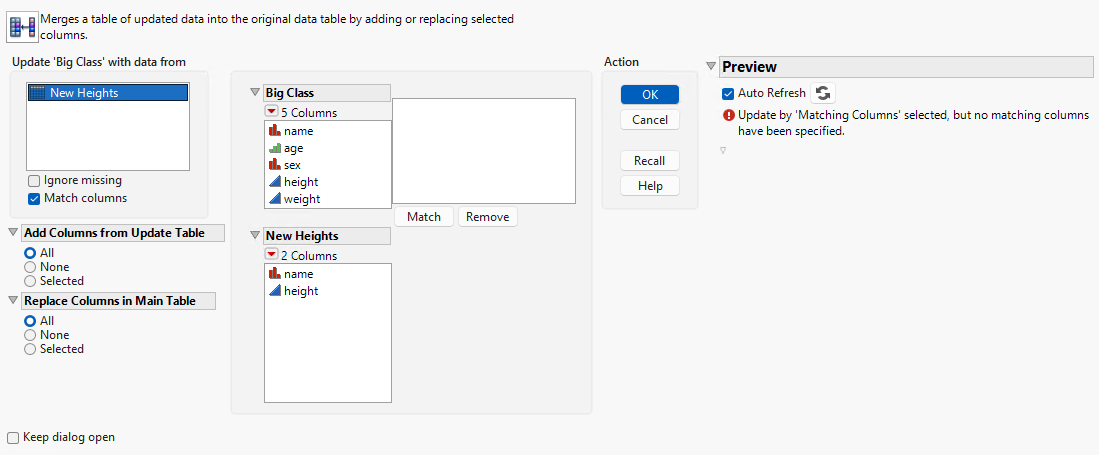
3. Highlight the new table that contains the data that you want to transfer to the original table.
4. (Optional) If you do not want JMP to replace the values in the original table with any missing values that are found in the new table, select the Ignore missing check box.
The original table retains its original values if they correspond to missing values in the new table.
5. If the two tables have one or more columns whose values uniquely describe each row, JMP uses those columns as the match column values.
That is, JMP updates the rows whose match column values coincide. JMP uses these columns to preserve the sorted order of the data. If your tables do not have matching column values, you can incorporate the updated values according to their row order by continuing here. To proceed with tables that contain matching column values, see To update a table by using matching columns.
6. From the Add Columns from Update Table area, select an option.
Using these options, you can add columns (that do not exist) from the new table into the original table.
– Choose All to add all columns from the new table into the original table.
– Choose Selected to add only columns that you selected from the new table into the original table.
– Choose None if you do not want to add any nonexistent columns from the new table into the original table.
7. (Optional) From the Replace Columns in Main Table area, select an option.
By using these options, you can replace the values in columns that have the same names.
– Choose All to add all columns with the same names from the new table into the original table.
– Choose Selected to replace only columns with the same names that you selected from the new table into the original table.
– Choose None if you do not want to add any nonexistent columns that have the same names from the new table into the original table.
8. Click OK.
To update a table by using matching columns
1. Follow the first three steps that are outlined in the previous section, To replace values in the active table with those found in another open table.
2. Select Match columns.
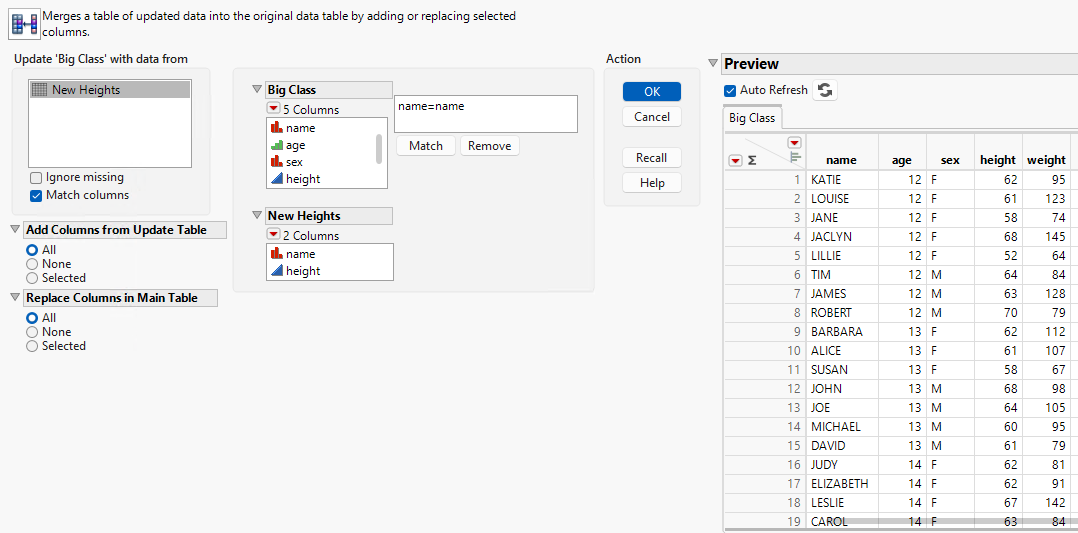
3. Highlight the two column names (in the respective tables) that you want to match.
4. Click Match.
Figure 6.46 Updating a Table with Matching Columns
5. (Optional) Repeat to match more columns.
6. Click OK.
Note: Columns that have different names from the columns in the table that you are updating (and that have not been assigned matches) are appended as separate columns. To avoid this problem, select the None option in the Add Columns from Update table area.