Add Graphs or Images to Hover Labels
In JMP, you can add a thumbnail of a graph or an image to a hover label with graphlets.
• Preset graphlets: Preset graphlets are predefined and editable. They are easy to add by right-clicking a graph and selecting Hover Label > graph type. Or, you can add them from the Hover Label Editor.
Note: Graphs that are based on synthetic data (such as data used in simulations) that are not connected to a data table do not support preset graphs.
• Paste graphlet: Create a graph in Graph Builder. Copy the script by saving it to your clipboard, and then paste it as a graphlet into a baseline graph.
After you add the hover graph, put your cursor over an element in the baseline graph. A thumbnail preview of the hover graph appears for that element. For example, for aggregate data, you can see a hover graph of the underlying data distribution.
Some JMP platforms have built-in hover label graphs, such as Principal Components, Process Screening, Model Driven Multivariate Control Charts, and Functional Data Explorer. You do not need to do anything to add these graphs to your visualizations. When you hover over them, the graph automatically appears in the hover labels.
You can also customize hover label graphs by using JSL. For details, see “Hover Labels” in the Scripting Guide.
You can perform the following actions with hover graphs:
• Click a hover graph to launch it in a new window, or click an image to open a related link.
• Press Ctrl and click a hover label graph to replace the baseline graph with the hover label graph.
• Press Alt and click a hover label graph to replace the contents of the last launched window instead of opening a new one.
Example of Adding a Preset Graph to a Hover Label
In this example, you create a graph, add preset graphs to hover labels, and then customize the hover label graphs.
Create the Original Graph
1. Select Help > Sample Data Folder and open JMP Man Dozen.jmp.
2. Select Graph > Graph Builder.
3. Select X and Y and drag them to the Y zone.
4. Select Data Set and drag it to the X zone.
5. Click the Bar element ( ).
).
6. For the Error Interval, select Standard Deviation.
Figure 9.55 Original Graph for JMP Man Dozen.jmp
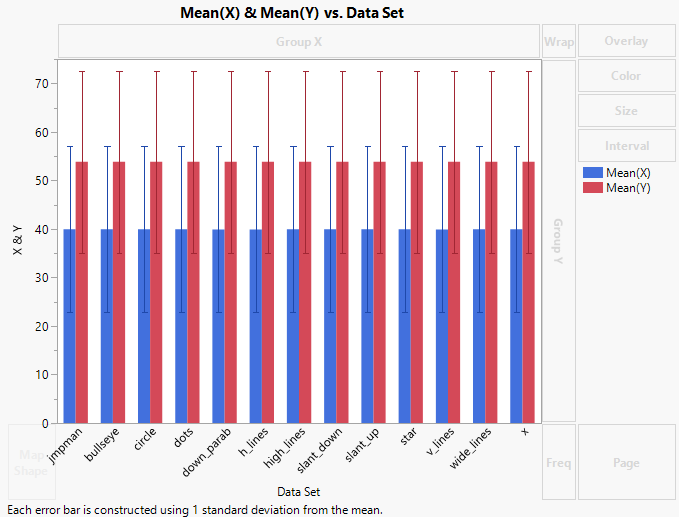
Notice that the mean and standard deviation for these observations are the same, so this graph does not tell you much. Use preset graphs to get more insight into the data.
Add Preset Graphs
1. In the graph, right-click and select Hover Label > Histogram.
This adds preset histograms to the hover labels.
2. Point to some of the bars.
In this example, point to the red bars for dots and star.
Tip: To make the hover label remain so that you can compare it with other hover labels, click the Pin icon ( ) in the upper right corner of the hover label. See Pin Hover Labels in JMP Graphs.
Figure 9.56 Example of Preset Histograms
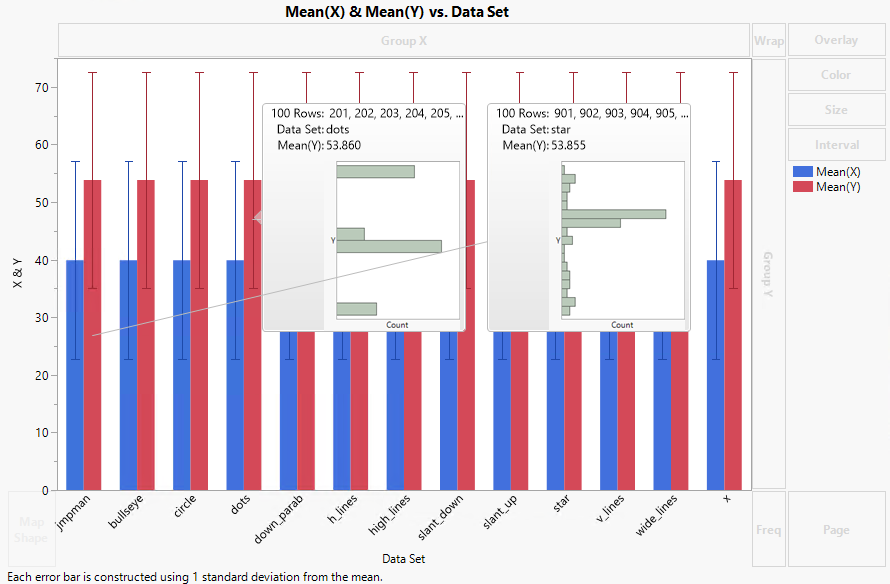
Notice that the distribution for the measurements is clearly different. But you want to see another type of graph, a scatterplot.
3. In the graph, right-click and select Hover Label > Points.
This changes the preset graphs from histograms to scatterplots.
4. Hover over the blue bar for down_parab and the red bar for down_parab.
Notice that the Y and X variables on the axes are reversed.
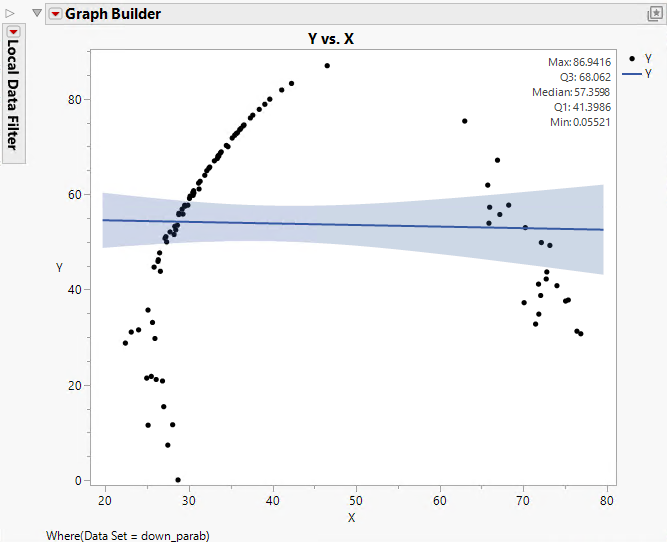
You want to use the same X and Y role assignments for all graphs (assigning the X variable to the X axis, and the Y variable to the Y axis). You also want to change the smoother to a line of fit, and add a caption box with summary statistics to the scatterplot.
You can customize a graph in Graph Builder and then copy the graph as a template and apply it to all of the hover labels in this graph.
Customize Graphs
1. Hover over the blue bar for down_parab and click the graph to open it in a new window.
The graph opens in Graph Builder.
Note: Notice that when you launch a preset graph, you see a Local Data Filter on the left side of the graph. You can use the Local Data Filter to expand and change the graph. For details, see Local Data Filters in JMP Reports.
2. Click the Graph Builder red triangle and select Show Control Panel.
3. Click the Line of Fit element ( ).
).
4. Click the Caption Box icon ( ).
).
5. Under Caption Box, change the Summary Statistic to 5 Number Summary.
6. Click Done.
Figure 9.57 Customized Graph for down_parab
7. Click the Graph Builder red triangle menu and select Save Script > To Clipboard.
8. Close this Graph Builder window.
9. In your original graph, right-click and select Hover Label > Paste Graphlet.
This applies the customized graph as a template to all hover label graphs. Hover over a few bars to see the changes.
Tip: To better compare original graphs and graphs that are launched from hover labels, use projects. See “Save and Share Your Data”.
Example of Specifying Drill-Down Column Hierarchies in Hover Labels
In preset graphs that use categorical columns, you can specify which columns to filter by.
Create the Original Graph
1. Select Help > Sample Data Folder and open NYC 311 Records.jmp.
These data show complaint data for boroughs in New York City.
2. Select Graph > Graph Builder.
3. Select borough and drag it to the X zone.
4. Click the Treemap element ( ).
).
You see a treemap of the different boroughs in New York City.
5. Right-click on the graph and select Hover Label > Treemap.
6. Put your cursor over Brooklyn to see the hover label graph.
Figure 9.58 Initial Hover Label Graph for Brooklyn
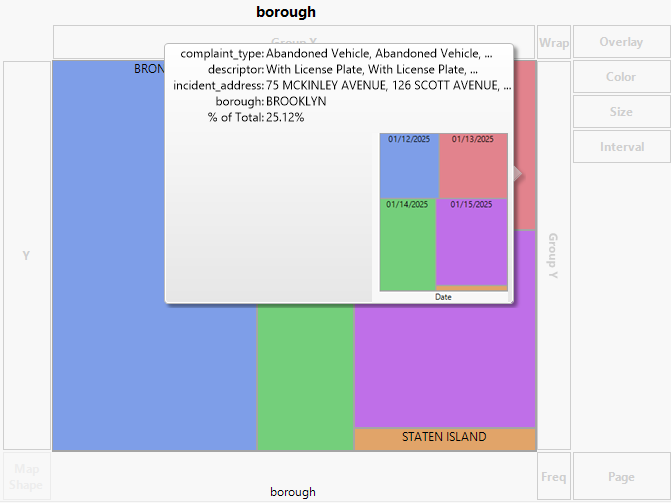
The hover label graph shows the number of incidents in each borough by the date. Instead, in this example, you want to see the number of incidents in each borough by the type of complaint.
Specify the Drill-Down Column Hierarchy
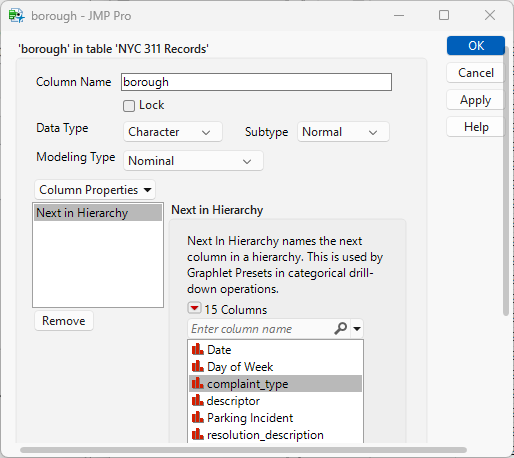
1. In the NYC 311 Records.jmp data table, right-click the borough column heading and select Column Properties > Next in Hierarchy.
2. Under Next in Hierarchy, click complaint_type.
Figure 9.59 complaint_type Selected for Next in Hierarchy
3. Click OK.
4. Add a second level of the hierarchy that appears if the first hover label graph is launched:
a. In the NYC 311 Records.jmp data table, right-click the complaint_type column.
b. Select Column Properties > Next in Hierarchy.
c. Under Next in Hierarchy, click descriptor.
d. Click OK.
5. In Graph Builder, put your cursor over Brooklyn again to see the updated hover label graph.
Figure 9.60 Updated Hover Label Graph for Brooklyn
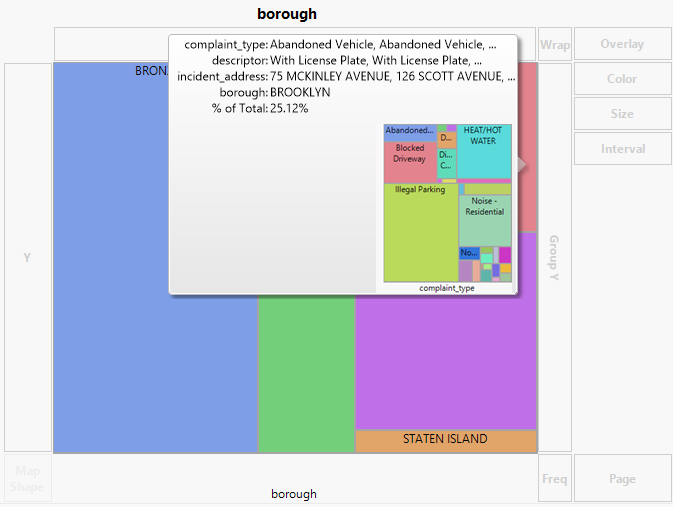
The hover label graph is now showing the number of incidents in each borough by the type of complaint.
6. Click the hover label graph to launch it.
7. Put your cursor over Noise-Residential.
Figure 9.61 Second Level Hover Label Graph for Residential Noise Complaints
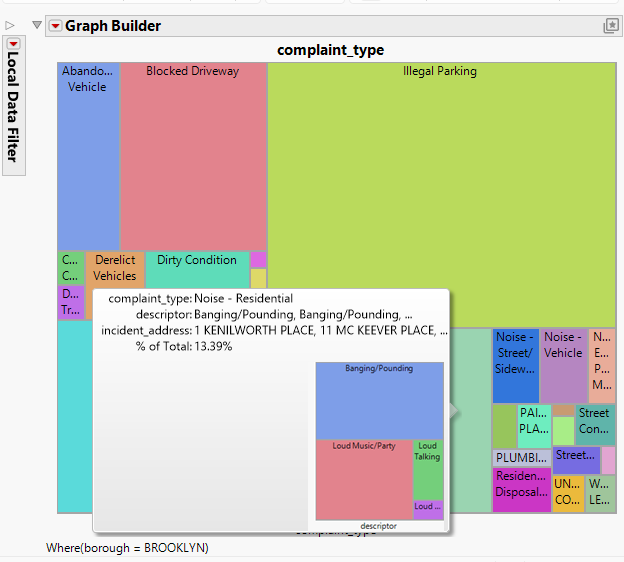
The second level of the hover label graph is showing the number of incidents in the residential noise complaints category by the descriptor.
Example of Removing a Filter Column from a Hover Label Graph
In some cases, the hover label graph might be filtering on a column that you want to remove. For example, the filter column might be too granular to be useful. You can remove the filter column by using the Hover Label Editor.
Create the Original Graph
1. Select Help > Sample Data Folder and open PopAgeGroup.jmp.
These data show age rates for regions and countries in the world.
2. Select Graph > Graph Builder.
3. Select Pop and drag it to the Y zone.
4. Select Year and drag it to the X zone.
5. Select Region and drag it to the Overlay zone.
6. Click the Line element ().
Figure 9.62 Mean Population by World Region Per Year
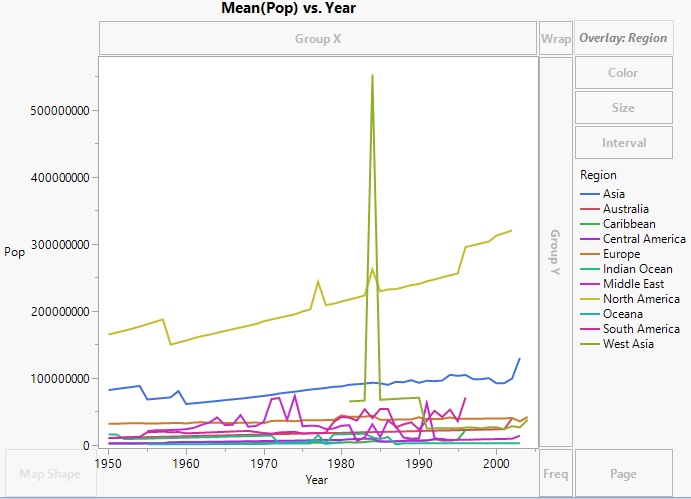
This graph shows the mean population in each world region over different years. In the hover label graphs, you want to see a more granular view that shows the impacts by country instead of region.
7. Keep this window open.
Copy and Paste a Graph
1. Click the Graph Builder red triangle and select Redo > Redo Analysis.
A copy of the original graph appears.
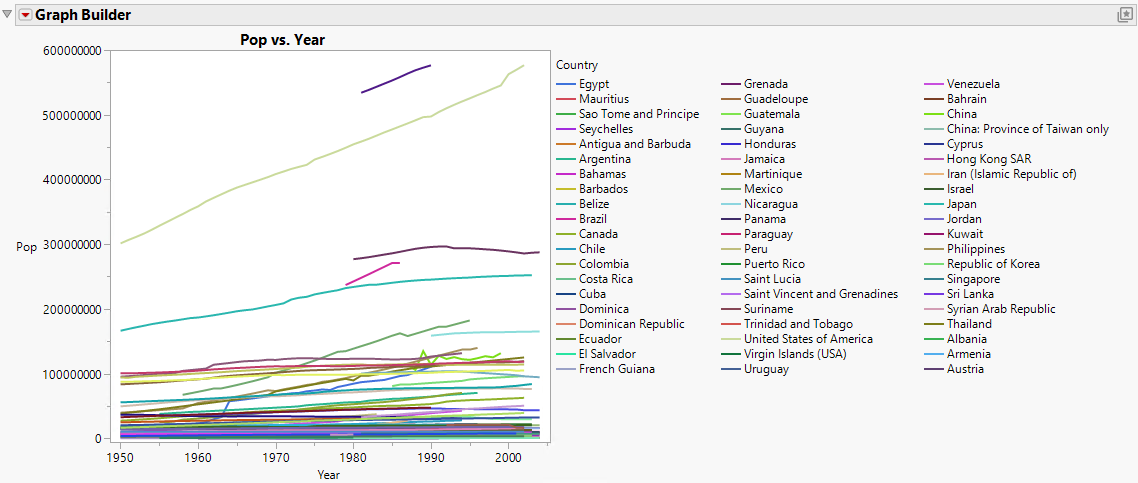
2. In the copy of the graph, select Country and drag it to the Overlay zone.
This replaces Region with Country.
3. Click Done.
Figure 9.63 Mean Population by Country Per Year
4. Click the Graph Builder red triangle and select Save Script > To Clipboard.
5. Close this graph.
6. In the original graph, right-click and select Hover Label > Paste Graphlet.
7. Hover over the Asia line and click to launch the hover label graph.
Figure 9.64 Hover Label Graph That Shows Population by Country and Year for the Asia Region
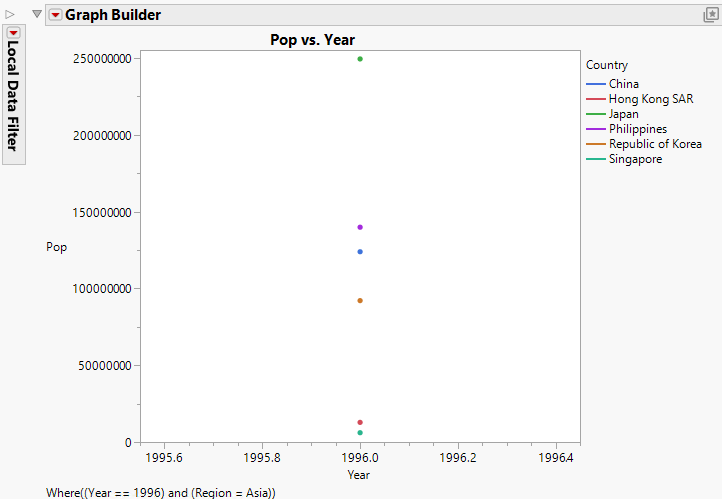
Because you are still filtering by year, this view is too granular to be useful. You want to remove the year filter, so that the graph filters only by region.
8. Close the hover label graph for the Asia region.
Remove a Filter Column
1. Right-click the original graph and select Hover Label > Hover Label Editor.
2. In the Graphlet window, click the Filters tab.
3. Select Year, the column that you no longer want to filter by.
Figure 9.65 Skip Filters in the Hover Label Editor

4. Click OK.
5. Hover over the Asia line and click to launch the hover label graph.
Figure 9.66 Hover Label Graph That Shows Population by Country and Year for the Asia Region
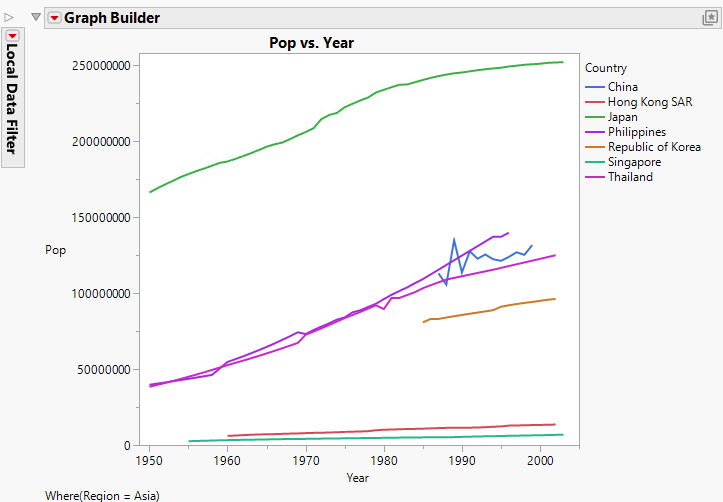
Notice that the hover label graphs are no longer filtering by year, but by region only, creating a more useful visualization.
Example of Displaying Multiple Images in a Hover Label
For labeled columns, hover labels can contain an image from the first labeled image column and up to four values from labeled text columns. To show more labeled images or text observations, use the Label Viewer.
1. Select Help > Sample Data Folder and open Big Class Families.jmp.
2. Select Graph > Graph Builder.
3. Select weight and drag it to the Y zone.
4. Select height and drag it to the X zone.
5. Click the Bar element ().
6. Hover over the bar for the height of 65 inches and click the Pin element ().
Figure 9.67 Hover Label with Only Initial Image
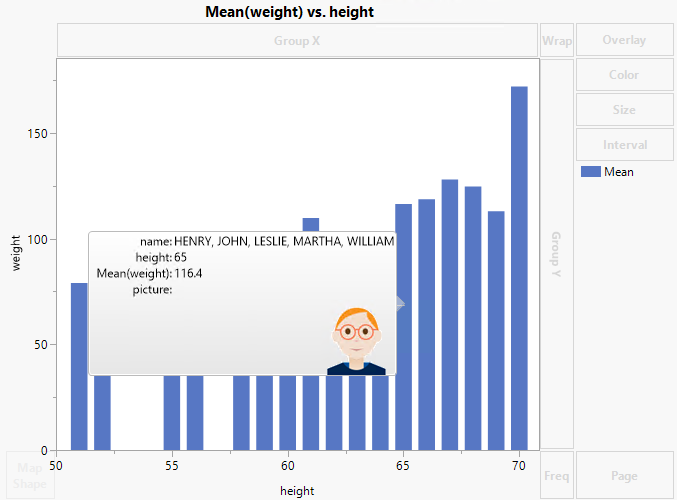
Although five names are included in this bar, only the first image appears in the hover label. You want to see more images in the hover label.
7. Right-click in the graph and select Hover Label > Label Viewer.
Figure 9.68 Hover Label with Multiple Images
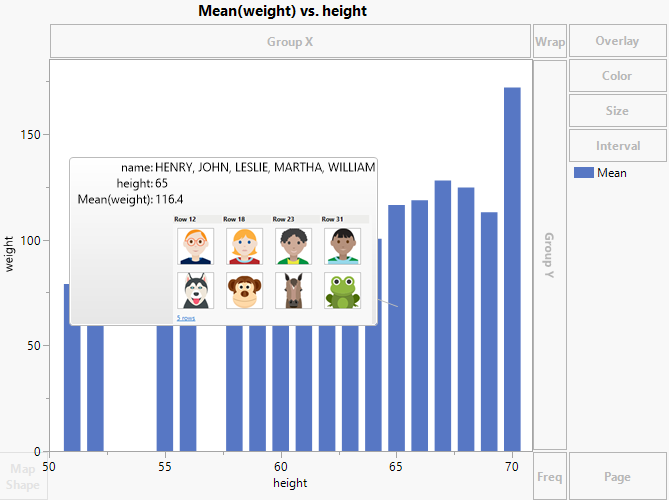
The maximum of eight images now appear in the hover label.
8. To see the additional image, click a thumbnail in the hover label.
9. In the Label Viewer, click the Forward arrow ( ) to see the fifth image.