Caption Box
In Graph Builder, the Caption Box element ( ) displays summary statistics on the plot. The summary statistic corresponds to the variable that corresponds to the axis that you specify as the Response Axis in the Caption Box options.
Summary Statistic for Categorical Variables
For a categorical variable, the Summary Statistic that appears is calculated by assigning numerical values to the levels of the categorical variable. The levels are placed in the order that is defined by their value ordering. They are assigned integer values that range from 0 to the number of levels minus one.
Note: When using categorical values in zones that are associated with summarization roles like Y and Color, summary statistics are calculated based on numerical values that are assigned to the variable levels. (The integer values range from 0 to the number of levels minus one.) The final result is then mapped back as a level to a corresponding categorical value or value range. This approach allows the use of ordinal variables in summarization, but might not lead to clear results for nominal variables.
For an example that illustrates the Caption Box element, see Example of Graph Builder.
Figure 3.39 Caption Box Options
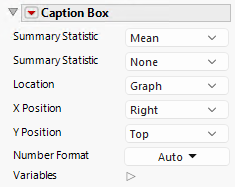
Summary Statistic
Specifies the summary statistics to be displayed for the variable that is defined by the Response Axis setting. You can add up to five summary statistics. For more information about how summary statistics are computed for categorical variables, see Summary Statistic for Categorical Variables.
Location
Specifies the location of the caption box. Location has the following options:
Graph
Shows a caption in a corner of the graph. This option is the default.
Graph per factor
Shows a caption for each X or each Y if horizontal along an edge of the graph interior.
Axis Table
Shows the same as Graph per factor, but appears below the axis.
Axis Reference Line
Represents statistics as a data-driven reference line.
X Position
Specifies the horizontal position of the caption.
Y Position
Specifies the vertical position of the caption.
Number Format
Enables you to set the format of the summary statistic.
Variables
Shows or hides graph elements for variables, or re-orders the display of variables.
Note: These options do not apply to variables in the Group X, Group Y, Wrap, or Page zones.
Check boxes are followed by the zone designation and the name of the variable. Use the check boxes to perform the following actions:
– Show or hide the elements that correspond to a variable in a zone.
– Add or remove the effect of applying the Color, Size, Shape, or Freq variable to the variable in the zone.
Tip: If you have multiple graphs, you can color or size each graph by different variables. Drag a second variable to the Color or Size zone and drop it in a corner. In the Variables option, select the specific color or size variable to apply to each graph.
Use arrows to re-order the display if there are multiple variables in a zone. Highlight a variable name and click an arrow to reposition it.
For an example using Variables, see “Example of an Area and Line Chart”.
Red Triangle Option for Caption Box
Response Axis
Specifies the axis for the variable whose summary statistic is displayed. The Y axis is the default. Notice that this axis can differ from the response axis that is specified to define the plot.