Change Variables in a Bubble Plot
In the Bubble Plot red triangle, use the Show Roles option to change existing variables without having to relaunch the platform and restart your analysis.
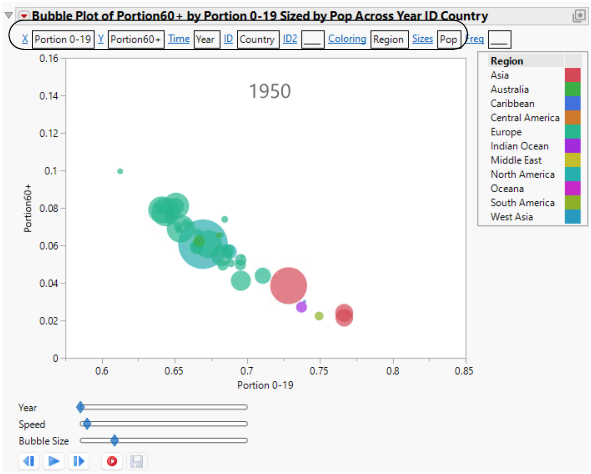
Follow the instructions in Example of a Dynamic Bubble Plot to produce the report window shown in Figure 5.6. (The colors are the JMP default colors.)
Figure 5.6 Example of Bubble Plot with Show Roles Selected
Change the Variable Assigned to a Role
To change the variable that is assigned to a role, click a blue underlined role name. For example, perform these steps to change the Coloring variable in Figure 5.6:
1. Click the Bubble Plot red triangle and select Show Roles.
2. Click the Coloring link.
The Select column for Coloring window appears.
3. Click Country.
4. Click OK.
Country now replaces Region as the Coloring variable in the bubble plot.
Remove a Variable
To remove an existing variable from the bubble plot, make sure that nothing is selected in the Select column for <Role> window, and click OK. For example, perform these steps to remove the Sizes variable (Pop) in Figure 5.6:
1. Click the Sizes link.
The Select column for Sizes window appears.
2. Ensure that nothing is selected. If a variable is selected, deselect it by pressing Ctrl and clicking the variable.
3. Click OK.
The Sizes role now appears with an empty box.
Note: You can only change the X and Y variables. You cannot remove them.
Add a Variable
After you remove an existing variable from the bubble plot, there are two ways to add a new variable:
• Click the blue underlined role name. See Change the Variable Assigned to a Role.
• In the data table, click the variable in the column panel, and drag it into the empty role box.