Connect to a Database using Data Connectors
Base configurations are available for a number of ODBC-compatible databases. You can customize and share these configurations to provide multiple users with a single configuration for loading data from your preferred data source into JMP.
Available Data Connectors
JMP searches for existing ODBC-configured DSNs (Data Source Names) found in the Windows registry or in ODBC.ini on Apple macOS and converts them to data connectors. The available connectors are then accessible from within JMP. This enables easy access to data sources without the need to manually re-create existing DSNs as configurations.
The following table lists the data connectors available natively within JMP as long as the DSN is registered on your local machine. For some there are multiple options available. When there is a driver available with “_new” appended to the driver name, it is recommended to use the new driver.
|
Title |
Drivers Available in JMP |
|---|---|
|
Amazon Redshift |
com.jmp.redshift |
|
Apache Hive |
com.jmp.hive com.jmp.hive_new |
|
Apache Impala |
com.jmp.impala |
|
Actual Access |
com.jmp.actual_csv |
|
Excel Server |
com.jmp.excel |
|
FileMaker Server |
com.jmp.file_maker |
|
Firebird SQL |
com.jmp.firebird com.jmp.firebird_new |
|
HDF5 |
com.jmp.hdf5 |
|
IBM Db2 |
com.jmp.db2 |
|
IBM Informix |
com.jmp.informix |
|
MariaDB |
com.jmp.maria_db |
|
Microsoft Access |
com.jmp.access |
|
Microsoft Office |
com.jmp.ms_office |
|
Microsoft SQL Server |
com.jmp.ms_sql |
|
MySQL |
com.jmp.mysql com.jmp.mysql_new |
|
Oracle Database |
com.jmp.oracle |
|
Postgre SQL |
com.jmp.postgre_sql |
|
SAP HANA |
com.jmp.hana com.jmp.hana_new |
|
SAS |
com.jmp.sas_local com.jmp.sas_remote |
|
SAS Viya |
com.jmp.sas_viya Note: Data Connectors cannot connect to programming-only SAS Viya 3.5 servers. |
|
Snowflake |
com.jmp.snowflake_rest |
|
SQLite |
com.jmp.sqlite |
|
Teradata |
com.jmp.teradata |
|
Microsoft Text Driver |
com.jmp.text_driver |
|
Vertica |
com.jmp.vertica |
Establish a Connection
After installing the ODBC driver for your chosen data source, follow these steps to connect to the database in JMP.
1. Select File > Connect To > Data Connectors.
The Connector box lists data sources that you have established a connection to.
2. Click New Connection.
The Select Data Connector window displays the New Connection window.
Figure 3.51 The New Connection Window
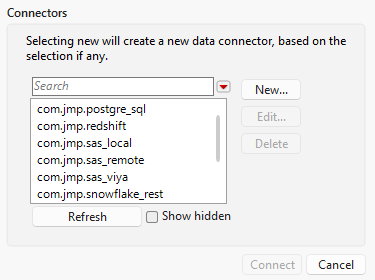
3. Select a data connector from the registry of built-in connectors, add-in connectors supplied by your organization, and user-created connectors.
Built-in connectors are prefixed with com.jmp, add-in connectors are prefixed with an add-in ID, and user-created connectors have no prefix. New connectors must be configured by using the configuration options listed in Configure a Data Connector.
4. With a configured data connector selected, click Connect.
The New Connection window closes, returning you to the Select Data Connector window.
Import Data from a Database Using a Data Connector
To import data from a database
1. Select File > Connect To > Data Connectors.
The Select Data Connector window appears (Figure 3.52).
2. If you are already connected to the database, select it in the Connections box.
The Connectors box lists data sources to which JMP is connected. The Schemas - Tables box lists schemas for the databases that support them.
Figure 3.52 Select Data Connector Window Before Establishing Any Connections
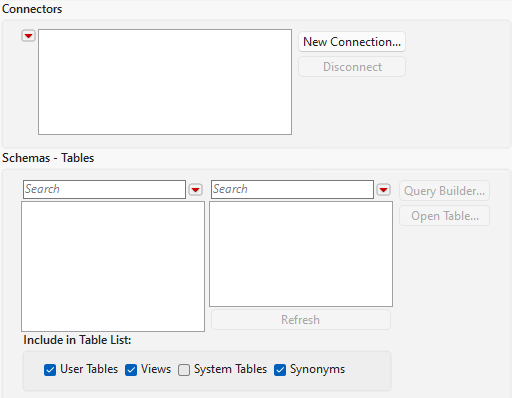
3. If the wanted data source is not listed in the Connectors box, click New Connection to choose a data connector.
Follow the steps in Configure a Data Connector.
4. Select the wanted data source in the Connectors box.
The tables list in the Tables box updates accordingly. The update might take several seconds, depending on the number of tables and the speed of the connection to the database. If your database supports schemas, tables are loaded for the first schema in the list. Tables for other schemas are loaded as you click them.
5. Control which tables are listed by choosing the options in the Include in Table List group of check boxes.
Note: Different drivers interpret these labels differently.
User Tables When clicked, displays all available user tables in the Tables list. User tables are specific to which user is logged on to the computer.
Views When clicked, displays views in the Tables list along with all other file types that can be opened. Views are virtual tables that are query result sets that are updated each time you open them. They are used to extract and combine information from one or more tables.
System Tables When clicked, displays all available system tables in the Tables list. System tables are tables that can be used by all users or by a system-wide service.
Synonyms When clicked, displays all available ORACLE synonyms in the Tables list.
6. Select the wanted table from the Tables list.
7. Click Open Table to import all the data in the selected table, or click Query Builder to specify a subset of the table to be imported.
See Build SQL Queries in Query Builder.
You might see a short delay when opening large tables. To see the status of all active ODBC queries, select View > Running Queries.
Note: If the data were previously exported to a database in JMP and contained an Expression column, the column is imported as a Character column. Select Cols > Column Info and change the Data Type to Expression.
Configure a Data Connector
The Data Connector Editor window appears after selecting New in the Select Data Connector window. Configure options for connecting to a database in this window, such as login credentials and SQL formatting.
For the fields in the Connection group that correspond to ODBC connection string keys, setting them to No value corresponds to not specifying them in the connection string. Options that accept a Boolean accept the values ON and OFF.
Figure 3.53 The Data Connector Editor Window
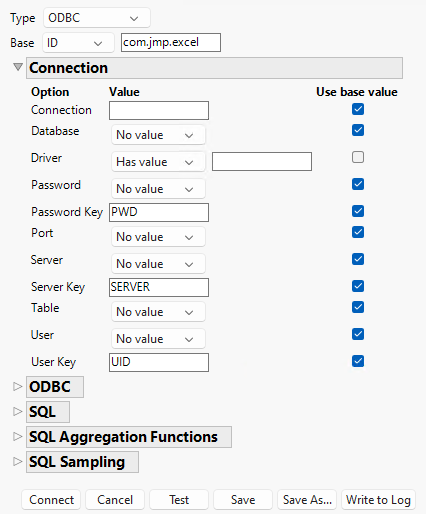
Data Connector Editor Window Options
Base
Specifies the type of key to use to load a base configuration.
None
Provides a blank configuration with all fields at their default values.
ID
Provides a configuration that is associated with the provided ID.
File
Provides a configuration that is associated with the provided file path.
Spec
Provides a configuration that is associated with the provided specification. Specifications use a restricted form of JSL with the syntax KEY1 = VALUE1; KEY2 = VALUE2; where KEY refers to a keyword like ID or Server, and VALUE refers to the ID or Server value of a data connection. Spec can be useful for testing configurations by accessing specific data sources through a named data connector configuration ID.
Connection
Provides options for connecting to a database.
Connection
Specifies an ODBC connection string.
Database
Specifies the name of the database for the connection.
Driver
Specifies the name of the driver.
Password
Specifies the password for access to the database.
Password Key
Specifies the connection string key to map to the value of the Password field.
Port
Specifies the port value.
Server
Specifies the name of the server instance.
Server Key
Specifies the connection string key to map to the value of the Server field.
Table
Specifies the name of the table to open.
User
Specifies the server login name.
User Key
Specifies the connection string key to map to the value of the Username field.
ODBC
Async Capable
(Boolean|AUTO) Specifies whether the driver supports asynchronous execution. If the AUTO option is selected, JMP attempts to determine this itself.
Block Fetch
(Boolean) Specifies whether the driver supports block fetch.
Block Fetch Requires 8-Byte Alignment
(Boolean) Specifies whether the driver assumes that block fetch memory requires 8-byte alignment.
List Synonym Tables
Indicates whether table listings should include synonym tables according to the setting available in the Include in Table List box of the Select Data Connector window.
Always
Includes synonym tables regardless of user preference.
Never
Excludes synonym tables regardless of user preference.
Maybe
Includes synonym tables according to user preference.
List System Tables
Indicates whether table listings should include system tables based on the setting available in the Include in Table List box of the Select Data Connector window.
Some drivers, such as the Excel driver, consider all tables to be system tables. Select Always to ensure that those tables are listed.
Always
Includes system tables regardless of user preference.
Never
Excludes system tables regardless of user preference.
Maybe
Includes system tables according to user preference.
Scrollable Cursors
(Boolean|AUTO) Specifies whether the driver supports the use of scrollable cursors. If the AUTO option is selected, JMP attempts to determine this itself.
JMP uses the SQLFetchScroll ODBC function instead of SQLFetch if scrollable cursors are supported.
SQLDescribeCol May Include Table Name
(Boolean) Specifies whether the column names that are returned by the SQLDescribeCol ODBC function can include the table name. Some drivers for cloud data sources support including the table name in the column names. If the ON option is selected, JMP parses the values that are returned by the SQLDescribeCol ODBC function.
Supports Schemas
(Boolean|AUTO) Specifies whether the driver supports schemas. If the AUTO option is selected, JMP attempts to determine this function itself.
Trailing Blanks in Values Matter
(Boolean) Specifies whether values that are the same up to trailing blanks should be considered different. Many databases consider such values to be equal, and JMP uses this option when collecting distinct values.
Treat Success with Info as Fetch Error
(Boolean) Specifies whether to treat a “Success with Info” result as an error. When fetching data, some drivers truncate the data and return the result “Success with Info” rather than an error.
SQL
Provides options for formatting SQL commands.
Default Case
(None|Uppercase|Lower) Specifies how the database maps the case of unquoted identifiers. For example, SQL Server treats select colname from ... and select COLNAME from ... the same as the quoted select [COLNAME] from ... and should have this option set to “Uppercase”. JMP uses this option to know when to quote identifiers in SQL code to preserve the intended case.
Format Date Literal
(Function) Converts dates and times to SQL fragments by using the provided function. If the string “Default” is provided, JMP uses its own conversion.
Functions that are provided should have the date or time as well as one of the following strings: “DATE”, “TIME”, or “TIMESTAMP”.
Formula Editor Mode
Determines what set of functions the formula editor shows by default when it is used to edit the formula for a computed column in Query Builder.
Generic
Specifies a set of generally applicable functions.
Access
Specifies a set of functions that are relevant to Access SQL.
DB2
Specifies a set of functions that are relevant to IBM Db2.
JMP
Specifies a set of functions that are relevant to JMP.
MySQL
Specifies a set of functions that are relevant to MySQL.
Oracle
Specifies a set of functions that are relevant to Oracle Database SQL.
SAS
Specifies a set of functions that are relevant to SAS.
SQL Server
Specifies a set of functions that are relevant to SQL Server.
All
Includes all functions that are available with the previous options.
Generate Row Count SQL
(Function) Computes a SQL query by using the provided function that determines the number of rows in the table. Alternatively, selecting the No value option will not generate a row count. Query Builder uses this function to show the number of rows in a table.
If a function is provided, it must take two arguments, the schema and the table name, and return a string with the SQL query. The schema name can be empty if schemas are not in use. If the number of rows is unknown, the result set should be empty or have a value of -1.
See the following script for an example of a function.
// Returns a query like:// SELECT NUM_ROWS FROM all_tables WHERE// table_name = 'my_table' AND owner = 'my_schema';Function({schema, table}, {quote string},quote string = Function({str}, "'" || Substitute(str, "'", "''") || "'");
Concat( "SELECT NUM_ROWS FROM all_tables WHERE table_name = ",quote string(table),
If(schema == "", "", " AND owner = " || quote string(schema)),
";")
);
Keywords
(Function) Specifies strings to be considered as keywords rather than identifiers in SQL code. This option is used to determine when to quote identifiers to avoid their interpretation as keywords.
Quote Type
(Double (“id”)|Single ('id')|SAS ('id'n)|Brackets ([id])|Backticks (‘id‘)) Specifies the type of escape characters and quotation marks that are used for identifiers.
Supports Null With In
(Boolean) Specifies whether NULL can be used in the list of an IN test.
This example shows the type of code that is produced with the ON option:
col IN ("val1", "val2", NULL)
This example shows the type of code that is produced with the OFF option:
col IS NULL OR col IN ("val1", "val2")
Trailing Semicolon
(Boolean) Specifies whether the driver handles SQL queries that end in a semicolon. This option does not directly affect the SQL code that is generated by Query Builder.
Unquoted Name Regex
(Regular expression) Specifies when to quote identifiers in SQL code by using a provided regular expression that matches names usable as unquoted names, including keywords. The default regular expression is ^[A-Za-z_][A-Za-z_0-9]*$, matching exactly a letter or underscore followed by zero or more letters, underscores, or digits.
SQL Aggregation Functions
Provides options for specifying SQL aggregate functions. Each option is set to Has value with a string that provides the function or set to No value,which indicates no support.
For example, Average Distinct Function has the default string “AVG(DISTINCT ”, which is used to generate SQL code that computes an average of distinct values like SELECT AVG(DISTINCT colname) FROM ....
SQL Joins
Specifies SQL JOIN options. Query Builder uses these options to determine what types of JOIN to expect.
Requires Pairwise Joins
(Boolean) Specifies whether JOINs can only be performed pairwise, which requires parenthesization.
The following example shows a pairwise JOIN that would be expected when this option is set to “ON”:
SELECT *FROM (( table1 t1 LEFT OUTER JOIN table2 t2 ON ( t1.col2 = t2.col2 ) ) LEFT OUTER JOIN table3 t3 ON ( t1.col3 = t3.col3 ) ) ;The following example shows a JOIN that would be allowed when this option is set to “OFF”:
SELECT *FROM table1 t1 LEFT OUTER JOIN table2 t2 ON ( t1.col2 = t2.col2 ) LEFT OUTER JOIN table3 t3 ON ( t1.col3 = t3.col3 ) ;Supports Cross Join
(Boolean) Specifies whether cross JOINs are supported.
Supports Full Outer Join
(Boolean) Specifies whether full outer JOINs are supported.
Supports Inner Join
(Boolean) Specifies whether inner JOINs are supported.
Supports Left Outer Join
(Boolean) Specifies whether left outer JOINs are supported.
Supports Right Outer Join
(Boolean) Specifies whether right outer JOINs are supported.
SQL Sampling
Provides options for implementing SQL sampling to return rows that are sampled from a table.
Generate Sample Around SQL
(Function) Determines whether and how to wrap the core SQL query to implement sampling by using a provided function. The function takes one argument, the sample settings, and returns either the empty string (indicating no wrapping) or a string that contains the placeholder text ^QUERYSQL, indicating where to inject the core query.
The following example implements sampling the “First N” rows. It does this by returning a query template when the sample type is “First N” and an empty string otherwise.
Function({qss}, {},If(qss << Get Sample Type != "First N", "",
"SELECT * FROM (^QUERYSQL) WHERE ROWNUM <= "|| Char(qss << Get Sample Amount)
)
);
The sample settings object supports the following JSL messages:
<< Get Sample Amount
Returns the amount to sample. This sample is the number of rows or the percentage (between 0 and 100), depending on the sample type.
<< Get Sample Is Repeatable
Returns whether repeatable sampling is enabled.
<< Get Sample Seed
Returns the seed to use for repeatable sampling.
<< Get Sample Type
Returns the type of sampling to perform, which can be one of the following strings: “Percent”, “N Rows”, or “First N”.
<< Get Use Block Sampling
Returns whether to use block sampling (1) or row sampling (0).
Generate Sample SQL
Provides a function to determine the code that is used to implement sampling in a SQL query as well as its location within that query.
The function takes two arguments: the sampling settings (described previously in Generate Sample Around SQL) and the context, which is a string. The context indicates where in the query JMP generates code.
The following contexts are available:
“Before Columns”
Returns values between SELECT and the column names.
“Before Alias”
Returns values between the first table name and its alias.
“After From”
Returns values between the query’s FROM clause and before additional clauses.
“After Joins”
Returns values between where the query’s JOIN clauses go and before additional clauses like WHERE.
“As Order By”
Returns values that replace the ORDER BY clause in the query. This is similar to “At End” but the context should be used when the value includes an ORDER BY clause.
“At End”
Returns values at the end of the SQL query.
Supports Block Sampling
(Boolean) Specifies whether sampling can (or can only) be done by blocks, at a coarser level than individual rows, as with SAMPLE BLOCK in Oracle.
Supports Repeatable Sampling
(Boolean) Specifies whether sampling is reproducible through the use of a seed, as with SEED (123456) in Oracle.
Supports Row Sampling
(Boolean) Specifies whether sampling can (or can only) be done by rows.
Supports Sampling First N Rows
(Boolean) Specifies whether getting the first N rows of the result is supported for a user-given N, as with LIMIT 1000 in PostgreSQL.
Supports Sampling N Rows
(Boolean) Specifies whether getting N random rows from the result is supported for a user-given N, as with TABLESAMPLE (1000 ROWS) in SQL Server.
Supports Sampling N Rows and Order By
(Boolean) Specifies whether getting a number of random rows and ordering the output (with ORDER BY) can be used at the same time. This is "OFF" for databases like PostgreSQL, where getting a number of random rows is implemented with an operation like ORDER BY RANDOM() LIMIT 1000, which makes the ORDER BY clause not available for its usual purpose.
Supports Sampling Percent
(Boolean) Specifies whether getting the sampling percent of the result is supported for a user-given N, as with TABLESAMPLE (10 PERCENT) in SQL Server.
Test
Attempts to connect with the given values and displays a message box confirming if the test was successful.
Save
Saves the current state of the editor with the provided ID to the list of available connectors in the Select Data Connector window.
Save As
Displays the Save As window, allowing you to save the current state of the editor with a provided ID to the list of available connectors in the Select Data Connector window. See Establish a Connection.
Write to Log
Writes the current state of the editor to the log. The text written to the log can be used to create a configuration file.
Edit a Data Connector Configuration
Existing data connectors can be edited from the Select Data Connector Window. In order to appear in the Select Data Connector window, a data connector must have an established connection.
1. Select File > Connect To > Data Connectors.
2. Select New Connection.
3. Select a previously configured and connected data connector, then select Edit.
Share a Data Connector Configuration
Configured data connectors can be saved and shared as JMP add-ins, allowing use by multiple users across different operating systems.
1. Select File > Connect To > Data Connectors.
2. Click the red triangle in the Connectors field.
3. Select Share Connectors.
4. Add each connector that you want to share from the connector registry to the Selected Connectors field by double-clicking it or selecting it and clicking the > button.
5. Select Save in the Save Add-In File As window.
6. The data connector is saved as a JMP add-in file.
Install a Shared Data Connector Add-In
You can install and manage shared data connectors easily by using JMP’s add-in feature. See “Manage JMP Add-Ins” in the JMP Scripting Guide.
Example of Connecting to an Excel File Using Data Connectors
Data connectors are also provided for accessing file types such as Actual Access CSV and Microsoft Excel, rather than databases. In such cases, it is necessary to provide the file path rather than an ODBC connection string.
Provide the file path when configuring a new data connector in the syntax DBQ={filepath};.
The following example guides you through connecting to an XSLX file on your local machine.
1. Select File > Connect To > Data Connectors.
The Select Data Connector window appears.
2. Select New Connection to choose a data connector.
3. In the dialog that appears, select com.jmp.excel from the list of available data connectors.
4. Select New.
The Data Connector Editor window appears.
5. In the Connection field, provide the path to the file you want to connect to in the following format:
DBQ={C:\Users\YourName\Documents\data.xslx};
6. Select Connect to connect to the provided XSLX file.
Publishing a Data Table to JMP Live
Configurable Data Connectors allow a data table that connects to a database to be published to JMP Live and refreshed on a schedule. This enables multiple users to access and analyze one data source by using JMP and JMP Live features.
The data tables that are created by using Configurable Data Connectors can be published to JMP Live and refreshed on a schedule. Compared to Open Table, these data tables make setting up refresh scripts easier because they do not depend as much on specifying the right ODBC driver.
For information about publishing a report to JMP Live, see “Publish Reports to JMP Live”.