Display Options for JMP Reports
Right-click a disclosure icon ( ) to see options for rearranging reports and outline levels.
Close
Hides that section of the report. This can also be accomplished by clicking the disclosure icon.
Horizontal
If available, switches the outline of the report between a vertical and horizontal layout.
Open All Below
Opens all outline levels beneath the level where this option is selected, including that level.
Close All Below
Closes all outline levels beneath the level where this option is selected, including that level.
Open All Like This
Opens all of the same type of reports as the one that is present in the analysis window. If you analyze several variables at a time, you often want to open many of the same type of report tables all at once. You might also want to open all of the same type of report tables at once when you select multiple options on a single analysis.
Close All Like This
Closes all of the same type of reports as the one that is present in the analysis window.
Close Where No Outlines
Closes all parts of the report that do not have sublevels. This option is usually used at the top level of the report outline. It is a quick way to see a nesting structure overview of a report.
Outline Close Orientation
Specifies the orientation of the outline box when the disclosure icon is clicked closed. Available options are Auto, Horizontal, or Vertical, with Auto as the default orientation.
Append Item
Displays a submenu that lists ways that you can add structural items to the report. Items include text, outline title bars, references to other JMP files and windows, a list of all open JMP files, URLs, and scripts.
Add Text Item
Opens a window that lets you add up to six text items. You can select whether the text items appear with a bullet or initially appear hidden.
Note: You must click precisely on a hidden text box for the text item to become visible.
Add Outline Item
Opens a window that lets you add a titled outline box. The appended outline box contains a red triangle menu that lists the append menu items.
Add Window Reference
Opens a window that lets you select an open JMP window to add as a link to the selected outline box.
Add File Reference
Displays the Open Data File window that lets you select a file to add as a link to the selected outline box.
Add Directory of Files
Displays the Choose directory window that lets you select a directory to add as a link to the selected outline box. Links to each file in the selected directory are appended to the outline box.
Add Open Files
Displays the Select Files window that lets you add a currently opened file.. The outline box contains a link to the file.
Add URL Reference
Opens the Create Link to URL window that lets you add a Link Name and URL. The URL reference link is added to the selected outline box.
Add Script Button
Opens the Add Script Button window that lets you add a named link to the selected outline box. Clicking the added link runs the specified script.
Add Script Box
Adds a blank, interactive JSL script box to the report. This script box also contains a log which can be used to view and test script output.
Lock
Locks and unlocks a journal. This determines if the journal can be modified. Lock can be accessed by right-clicking in the margin area of the journal.
Edit Links
Displays the Edit Links in Journal window that lets you edit all links in the report, such as those added by Add Window Reference or Add Open Files.
Replace
Displays the Find what that can be used to find and replace strings in link file paths.
Test Links
Tests the file paths for all links in the report. Broken file paths are displayed in the log, which can be accessed from the report window by selecting View > Log.
File List
Displays a list of all files linked to in the report. This list is displayed in the JSL script editor for easy scripting or selection.
Size to Fit
Resizes the outline to fit the width of the inside graph or report.
Show Properties
Lets you change the formatting of the display boxes in the report. Properties include graph axis elements such as font, text color, padding, and alignment. See Change Display Box Properties in a JMP Report.
Tip: You can change some properties directly in the report by selecting one or more display boxes with the Selection tool and hovering over the display box until a pop-up property editor appears.
Edit
Displays a submenu that contains the following options, which affect all reports at the outline level where they are used:
Select
Highlights all reports for that outline level.
Deselect
Deselects all selected reports for that outline level.
Journal
Duplicates the report in a separate window titled Journal so that you can edit the report or append other reports to it. See “Create Journals”.
Copy Picture
Copies the report to the clipboard. You can then open another application and paste it.
Page Break
Inserts a page break for printing purposes.
Show Tree Structure
Opens a window that shows the display boxes that make up the report. This is mainly used by JSL programmers who are manipulating or reading parts of the report. See “Show the Display Tree” in the Scripting Guide.
Restore Window Size
(Appears only if the window size has been modified from its original size.) Returns the selected window to its original size.
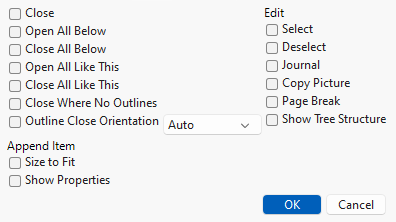
An alternative way to access these options is to press Alt and right-click the disclosure icon (). This displays a window, as shown in Figure 9.3, with check boxes for options so that you can select multiple actions at the same time. You can also do the same to access the red triangle menu options.
Figure 9.3 Outline Box Menu Items Window