Example of a Static Bubble Plot
In a JMP bubble plot, if you do not specify a Time variable, then the resulting bubble plot is static instead of dynamic. This example contains SAT verbal and math test scores for a selection of the US population in 2004. Use a static bubble plot to examine any correlation between the scores, change the grouping by using the ID variable, and split bubbles to get a more granular view of the data.
1. Select Help > Sample Data Folder and open SATByYear.jmp.
2. Select Graph > Bubble Plot.
3. Select SAT Verbal and click Y.
4. Select SAT Math and click X.
5. Select State and click ID.
6. Select % Taking (2004) and click Sizes.
7. Click OK.
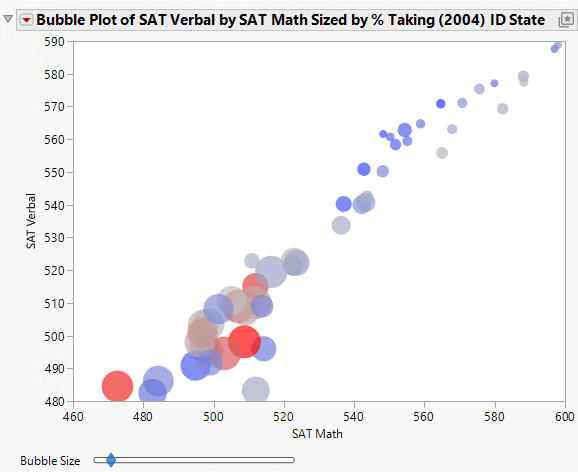
The report window appears. (Figure 5.11 uses the default JMP colors.)
8. Right-click the Y axis and select Axis Settings.
– Change the Minimum value to 480.
– Change the Maximum value to 590.
– Change the Increment to 10.
– Click OK.
9. Right-click the X axis and select Axis Settings.
– Change the Minimum value to 460.
– Click OK.
Figure 5.11 The Static Bubble Plot Report Window
You draw the following conclusions:
• Higher verbal scores appear to be associated with higher math scores because the two track very closely in the bubble plot. This track signifies a correlation between verbal and math scores.
• The larger bubbles represent the US states that had a high percentage of individuals that took the SAT test in 2004. These larger bubbles are all grouped together in the lower left of the graph. This graph shows that when a state had a high percentage of individuals that took the test, both the math and verbal scores were low.
Instead of grouping the bubbles primarily by state, group the bubbles primarily by region:
1. Click the Bubble Plot red triangle and select Show Roles.
2. Click the ID link.
3. Select Region and click OK.
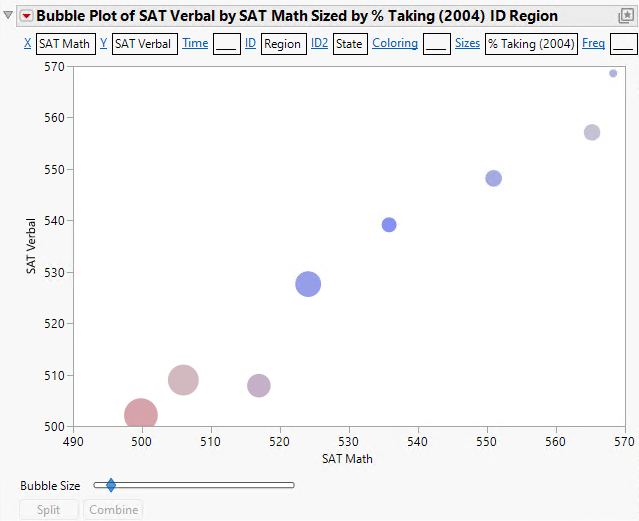
Region is now the primary ID variable.
4. Click the ID2 link.
5. Select State and click OK.
State is now the secondary ID variable.
6. Right-click the Y axis and select Axis Settings:
– Change the Minimum value to 500.
– Change the Maximum value to 570.
– Click OK.
7. Right-click the X axis and select Axis Settings.
– Change the Minimum value to 490.
– Change the Maximum value to 570.
– Click OK.
Figure 5.12 Example of Bubble Plot Grouped by Region and State
8. Click the bubble that represents the Southwest region (hover over a bubble or click it to see its label).
9. Click Split.
Now the bubbles are split by the secondary ID variable, which is State. You see each state within the Southwest region.
Figure 5.13 Example of Southwest Region Split by State
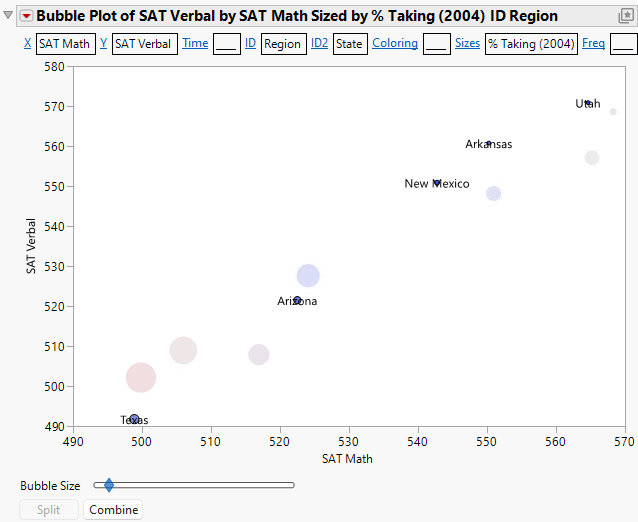
Notice that there is significant variation in the scores among the Southwest states.
10. Click Combine to combine the Southwest states again.
11. To do a comparison, click the New England bubble (hover over a bubble or click it to see its label).
12. Click Split.
Figure 5.14 Example of New England Region Split by State
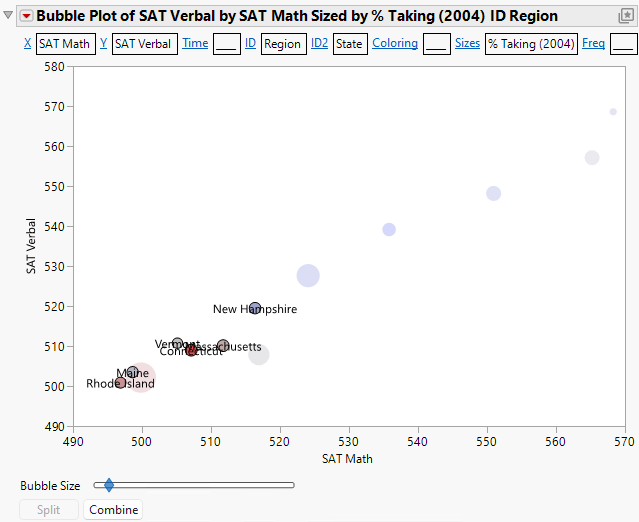
Notice that the New England states do not have as much variation as the Southwest states.