Examples of Column Filter Options
To hide columns in the Columns panel
1. Select Help > Sample Data Folder and open Lipid Data.jmp.
2. In the Columns panel, press Ctrl and select Name, Sex, and Age. These are the columns that will be hidden.
3. Right-click the highlighted column names in the Columns panel and select Hide/Unhide. The columns are hidden in the data grid but are still listed in the Columns panel.
4. Click the More Column Filtering Options button ( ).
).
5. In the Column Filter Options window, deselect Show Hidden Columns. In the Columns panel, the hidden column names are no longer shown.
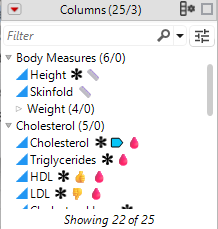
Figure 5.18 shows the message that is displayed at the bottom of the Columns panel: Showing 22 of 25. This message indicates that three columns are hidden.
Figure 5.18 Example Columns Panel Message
To hide columns with all selected tags
1. Select Help > Sample Data Folder and open Lipid Data.jmp.
2. Click the More Column Filtering Options button ().
3. In the Column Filter Options window, select Good Measure and Blood Measurements.
Note: The tags must be selected one at a time.
4. Click and select Advanced.
5. In the Advanced Tag Filter window, select ALL of the selected tags and click Filter.
Figure 5.19 displays the Column panel. The column that meets the criteria of the selected tags is shown. Additionally, the filtering count indicates that two tags are specified.
Figure 5.19 Example That Shows All Selected Tags Result
