Legend Options in Graph Builder
A Graph Builder legend consists of elements, such as lines, fill colors, and gradients. Right-click on legend elements for customization properties, such as color, size, and labeling options. The Legend Settings window contains additional legend settings.
To change legend settings or revert to initial settings, right-click to the right of the legend or on the title (if applicable). To undo recent changes to the legend, click Undo.
Tip: When you have both an overlay and a color variable, the color variable levels are shown by rounded color icons in the legend.
Legend Settings
Change certain aspects of the graphics elements (line, bars, and so on) such as color, fill, transparency, and gradient. You can also add a title to the legend. See Legend Settings Window.
Revert Legend
Returns the legend to its initial settings.
Move the Legend
To move the position of the legend, click and drag to the desired location. The location can be a hotspot that corresponds to the locations that are accessible from the Graph Builder red triangle or the legend or it can be any other location within the graph.
To use the menu options, click the Graph Builder red triangle and select Legend Position, or right-click the legend and select Legend Position. To make the legend vertical or horizontal, change the Item Direction in the Legend Settings window.
Legend Settings Window
Change aspects of the legend through the Legend Settings window.
Figure 3.45 Example of the Legend Settings Window
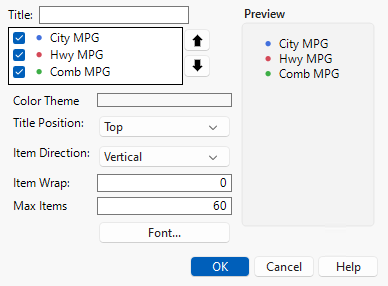
Title
The name of the legend.
Check boxes
Shows or hides items in the legend. JMP hides items that appear to be redundant, but you can make them appear by selecting them. If your legend has a large number of entries, some might be hidden in the Graph Builder window to ensure sufficient space for the graph. However, all of the entries appear here, so you can select the ones that you want to show. To select or deselect all entries, right-click and select Toggle check box.
Up and down arrows
Changes the order of items in the legend.
Color Theme
Select a different color theme. For more information about color themes, see “Create Color Themes in Graphs” in Using JMP.
Title Position
Places the legend title on top or to the left of the items in the legend.
Item Direction
Displays the legend horizontally or vertically.
Item Wrap
Sets the legend to be n items tall (if vertical) or n items wide (if horizontal).
Max Items
Enables you to set a maximum number of legend items.
Font
Changes the font type, style, and size.
Preview
Shows your changes to the legend.
OK
Commits your changes to the legend.
Cancel
Cancels your changes to the legend.
Help
Opens the online Help.
Discrete or Continuous Legend Items
Legends can list discrete values or show a scale of continuous values.
• Discrete legends can contain the levels of a categorical variable or a list of variables.
• Continuous legends describe a color intensity scale for a range of numerical values.
Right-click an item in either legend to see the following options:
Line Color
(Discrete legends only) Changes the color of the element that is associated with the item.
Marker
Changes the type of marker that is associated with the item.
Marker Size
Changes the size of the marker that is associated with the item.
Pattern or Style
Changes the fill or pattern of the element that is associated with the item.
Line Width
Changes the width of the line that is associated with the item.
Fill Color
Assigns a color to the item.
Color by Theme
Colors multiple contours by levels in a color theme. This option sets line colors and fill colors for density contours.
Transparency
Changes the marker or label transparency. Enter the level of transparency to draw markers (points) on the graph. The degrees of opacity ranges from 0 (clear) to 1 (opaque).
Gradient
(Continuous legends only) Changes the gradient settings. See Gradient Settings.
Density Gradient
(Contour element only) Changes the gradient colors:
Fade to White
The highest density contour uses the fill color, and colors fade to white at lower densities.
Fade to Gray
The highest density contour uses the fill color, and colors fade to gray at lower densities.
Full Color
Density contours use a predefined or customized color theme with full color control.
Gradient Transparency
(Contour element only) Changes the transparency of the gradient:
None
Density contours use one transparency level for all levels.
Linear
Density contours get gradually more transparent at lower densities.
Revert
Restores default settings.
Gradient Settings
You can change various aspects of the gradient legend in the Gradient Settings window.
Figure 3.46 Gradient Settings Window
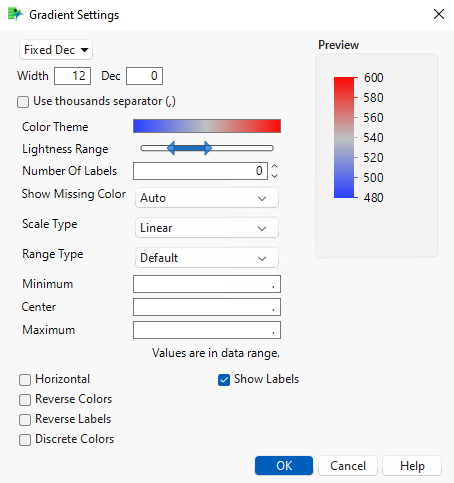
To format the labels in the legend, use the menu, Width and Dec boxes, and the Use thousands separator (,) check box in the upper left of the window.
Color Theme
Change the color theme or define a custom color theme. For more information about color options, see “Create Color Themes in Graphs” in Using JMP.
Lightness Range
Set the range of intensities for the gradient coloring.
Number of Labels
Specify the number of labels for your legend. The value of zero provides the default number of labels.
Show Missing Color
Specifies whether to show missing color in the legend. Auto shows the color only when there are missing values, Off never shows the color, On always shows the color.
Scale Type
Sets the scale for the gradient coloring. Look below the Maximum option for a description of the scale type.
Linear
The scale is piecewise linear between the Minimum and Center values and between the Center and Maximum values. This option is the default scaling.
Quantile
The scale is piecewise linear for quantiles of the variable that is represented by the legend.
Standard Deviation
The legend range is divided into offsets from the mean that is determined by standard deviation increments. The scale is piecewise linear between these offset settings. The number of offsets is determined by the Number of Labels.
Log
The scale is linear for the logarithm of the values that are represented by the legend.
Log Offset
The scale is linear for the offset of the base 10 logarithm of the values that are represented by the legend.
Custom
If a continuous variable is used as the overlay variable, you can customize the bin values for the gradient.
Range Type
Sets the range of the legend values.
Default
Unless you specify values for the Minimum and Maximum, the minimum and maximum values include the range of the data and are chosen to be appropriately rounded values.
Exact Data Range
The minimum and maximum values are the exact minimum and maximum values for the data, or they are the values that you specify as Minimum and Maximum.
Middle 90%
The minimum and maximum values are the 5th and 95th quantiles, or they are the values that you specify as Minimum and Maximum. This option is resistant to outliers.
Minimum, Center, Maximum
Specify the smallest, middle, and largest values to use for your legend scaling.
Note: These values can override the Range Type values.
Horizontal
Changes the orientation of the legend to horizontal.
Reverse Colors
Reverses the colors in the color scheme.
Reverse Labels
Reverses the scale for the color theme.
Discrete Colors
Changes the color scheme from a continuous gradient to a stepped gradient with discrete colors.
Show Labels
Shows or hides labels for the legend.
Marker Size Settings
You can change various aspects of the marker size in the Marker Size Settings window.
Figure 3.47 Marker Size Settings Window

To format the labels in the legend, use the menu, Width and Dec boxes, and the Use thousands separator (,) check box in the upper left of the window.
Number Of Labels
Specifies the number of labels for your legend. A zero value provides the default number of labels.
Range Type
Sets the range of legend values.
Default
Unless you specify values for the Minimum and Maximum, the minimum and maximum values include the range of the data and are chosen to be appropriately rounded values.
Exact Data Range
The minimum and maximum values are the exact minimum and maximum values for the data, or they are the values that you specify as Minimum and Maximum.
Minimum
Specifies the smallest value to use for your legend scaling.
Maximum
Specifies the largest value to use for your legend scaling.
Nesting Style
Refers to the way that the markers are nested and displayed in the legend.
Auto
Shows markers as separate markers for smaller base marker sizes (less than 12) and Nested Full otherwise.
Separate
Displays each labeled marker as a separate legend item.
Nested Half
Displays labeled markers as nested one inside of the other, showing half of each marker.
Nested Full
Displays labeled markers as nested one inside of the other.
Minimum Marker Size
Determines how the minimum marker is sized.
Zero Based
Indicates that marker sizes are directly proportional to the data values, starting from zero.
Dot
Indicates that the size of each marker is scaled in proportion to the minimum label, which is represented by a dot-sized marker.
Relative To
Indicates that the size of each marker is scaled in proportion to the value that you enter.
Horizontal
Changes the orientation of the legend to horizontal.