Medical Query Distribution
This report compares distributions of OCMQs or SMQs across treatment arms.
Report Results Description
Running Medical Queries Distribution for the Nicardipine study using Office of New Drugs Custom Medical Queries (OCMQs) (v3.0) files generates the Report shown below.
Note: Your output might vary depending on which version of OCMQs or MedDRA you provide.

The Report contains the following elements:
Narrow and Broad Medical Query Results
The Narrow Medical Queries and Broad Medical Queries sections each present the following:
| • | A set of Bar Charts (shown above). |
Bar charts are provided to summarize the frequency or percentage of subjects with each medical query.
Narrow search uses a more specific set of adverse event terms to identify a possible medical condition, while broad search uses a larger set of terms that could indicate a safety signal.
| • | A set of three tables for each section listing the counts (and percentages) of subjects showing the queries with and without associated dictionary-derived terms. The tables are organized to display the results at different levels of specificity. |
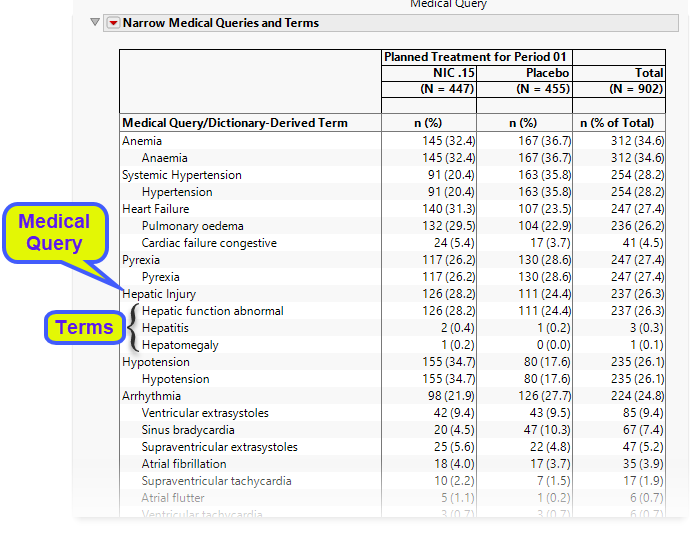
The Medical Queries and Terms table lists the counts (and percentages) by treatment arm for each medical query and the specific preferred terms associated with each query.
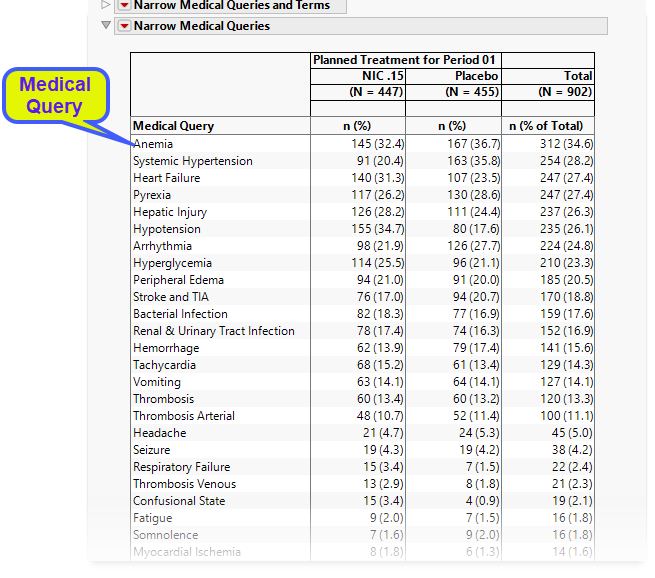
The Medical Queries table lists the counts (and percentages) by treatment arm for each medical query (no terms).
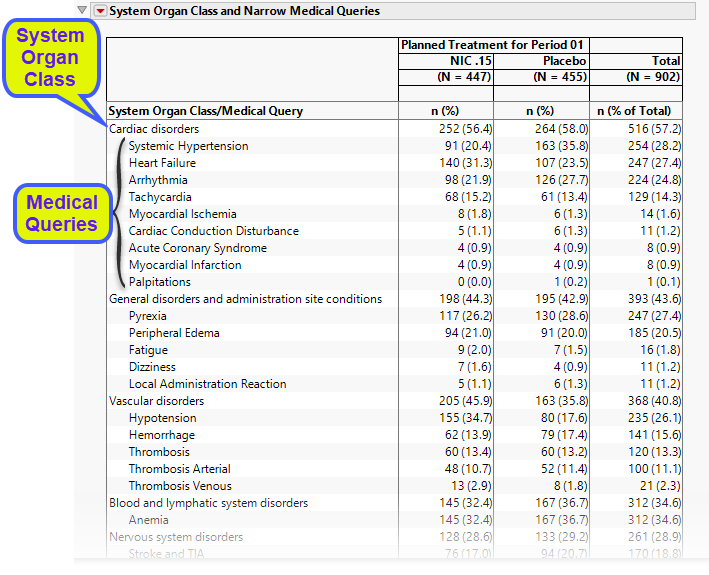
The System Organ Class and Medical Queries table organizes the results by system organ class and lists the counts (and percentages) by treatment arm for each system organ class and further by their associated medical queries.
Options
Data
Use the drop-downs on this panel to customize your analysis.

Medical Query Type
This widget enables you to specify whether you are using the Office of New Drugs Custom Medical Queries (OCMQs) or standard medical queries (SMQs). OCMQs are used by default. Refer to Medical Query Type for more information. If SMQs are selected, then the AE dataset from the study will be joined with the MedDRA ASCII files to map each AE to the associated medical queries. If the OCMQs are selected, then the AE dataset from the study will be joined with the OCMQ Excel file to map each AE to the associated medical queries.
Version of Office of New Drugs Custom Medical Query Files/Version of Standardized Medical Query Files
Use this widget to specify the version of the Medical Query files to use in the analysis. Options include all of the Medical Query files stored in the Medical Query directory specified for your configuration. Refer to General File Paths for information about the location of this directory. This option is dependent on the medical query type specified above.
Event Type
Analysis can consider all events or only those that emerge at specific times before, during, or after the trial period. For example, selecting On treatment events as the Event Type includes only those events that occur on or after the first dose of study drug and at or before the last dose of drug (+ the offset for end of dosing).
Ignore available treatment emergent flags
If you choose to ignore available treatment emergent flags, the analysis includes all adverse events that occur on or after day 1 of the study when the event type is Treatment emergent events.
Demographic Grouping and Stack
Results can be viewed as a whole or they can either be split out by Demographic Grouping or Stacked to show different levels within each event. Demographic Grouping will change the variable displayed on the y-axis of the bar chart, as well as change the variable used across the top of the table to split the columns. Stack impacts the bar chart by stacking the bars according to the levels of the chosen variable with corresponding effects in the table. For example, if severity is chosen, the bars will be stacked by mild, moderate, and severe events.
Additional Filters - Adverse Events
This filter lets you restrict your analysis to only those subjects that meet specific criteria at the AE domain level. See Adverse Events for more information.
Display
Report Data Filters

These filters enable you to subset and view subjects based on demographic characteristics and other criteria. Refer to Data Filter for more information.
Note: Filter specifications are reapplied when any widget options are changed.
General and Drill Down Buttons
Action buttons provide you with an easy way to drill down into your data. The following action buttons are generated by this report:
| • | Click  to rerun the report using default settings. to rerun the report using default settings. |
| • | Click  to view the associated data tables. Refer to Show Tables for more information. to view the associated data tables. Refer to Show Tables for more information. |
| • | Click  to generate a standardized PDF- or RTF-formatted report containing the plots and charts of selected sections. to generate a standardized PDF- or RTF-formatted report containing the plots and charts of selected sections. |
| • | Click  to generate a JMP Live report. Refer to Create Live Report for more information. to generate a JMP Live report. Refer to Create Live Report for more information. |
| • | Click  to take notes, and store them in a central location. Refer to Add Notes for more information. to take notes, and store them in a central location. Refer to Add Notes for more information. |
| • | Click  to read user-generated notes. Refer to View Notes for more information. to read user-generated notes. Refer to View Notes for more information. |
| • | Select one or more subjects, then click  to apply the Review Subject Filter and filter all reports in the review builder on the selected subjects. to apply the Review Subject Filter and filter all reports in the review builder on the selected subjects. |
| • | Select a group of subjects and click  to specify Derived Population Flags that enable you to distinguish the selected group of subjects from the general population. to specify Derived Population Flags that enable you to distinguish the selected group of subjects from the general population. |
Default Settings
Refer to Set Study Preferences for default Subject Level settings.
Methodology
Analysis is restricted to tabulating counts/percentages of subjects experiencing medical queries. The unique record to display for each event is determined by sorting the data by Unique Subject Identifier (USUBJID), medical query, dictionary-derived term (AEDECOD), seriousness (AESER), severity (AETOXGR/AESEV), and the day the event started (AESTDY) and picking the first record for each dictionary-derived term.
Note: This report responds to the option specified in the Sort Distribution Report table by: widget on the Set Study Preferences window.
Note: Records marked as not occurring (xxOCCUR = N) are excluded from this analysis.