Data Grid in Data Tables
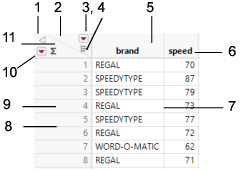
In JMP data tables, the data grid is the main part of the data table that contains your data. Figure 2.10 illustrates how to interact with the data grid. See also “Select Rows in Data Tables”.
Figure 2.10 Interacting with the Data Grid
Number | Description |
|---|---|
1 | To hide the data table panels on the left side of the data table, click the disclosure icon. |
2 | • To deselect any selected columns, click the space above the diagonal line. • To select all columns, press Shift and click the space above the diagonal line. • To add multiple columns, double-click the space above the diagonal line. |
3 | To access the Cols menu options, click the red triangle. |
4 | To show histograms in the column header, click the histogram. |
5 | • To select a column, click a column title. • To edit a column, double-click a column title. See “About the Column Info Window”. • To access column options, right-click a column title. See Right-Click Options for Columns. |
6 | To edit a column name, double-click the name. |
7 | • To change a column width, click and drag a line between columns. • To change several column widths at once, select the columns, and then click and drag a line between the highlighted columns. |
8 | • To change row widths, click and drag a line between rows. |
9 | • To select a row, click the row number. • To edit a row, double-click a row number. See “Edit Cells in Data Tables”. • To access row options, right-click a row number. See Right-Click Options for Rows. |
10 | To access the Rows menu options, click the red triangle. |
11 | • To deselect any selected rows, click the space below the diagonal line. • To select all rows, press Shift and click the space below the diagonal line. • To add rows, double-click the space below the diagonal line. |
Right-Click Options for Columns
Right-clicking in a column header shows these options:
Column Info
Opens the Column Info window. See “About the Column Info Window”.
Standardize Attributes
Copies attributes (data types, modeling types, numeric formats, and so on) or properties (formulas, notes, list and range checks, and so on) from one column to other columns. Also deletes selected attributes or properties from columns. See “Standardize Attributes and Properties Across Columns”.
Column Properties
Contains a list of column properties. Select one to open the Column Info window and apply it to the column. This list is also available from the Column Info window. See “Column Properties in JMP”.
Formula
Opens the Formula Editor. See “Create Formulas in JMP”.
Recode
Enables you to change all of the values in a column at once. See “Recode Data in a Column”.
New Formula Column
Creates a formula column. See “Make a New Formula Column”.
Insert Columns
Inserts one or more columns before the selected column or columns.
Delete Columns
Deletes all selected columns.
Label/Unlabel
Labels or unlabels selected columns in all plots. See “Label Rows and Columns”.
Link ID
Used in virtually joined data tables to mark a column in the auxiliary data table as the ID column. That is, the rows of the data table are uniquely identified by the values of the ID column. The Link ID column property check box is selected if the column is the ID column for the data table. See “Link Data Tables with Virtual Join Properties”.
Link Reference
Used in virtually joined data tables to map a column in the main data table to the ID column in the auxiliary data table. The Link Reference column property specifies the path name of the auxiliary data table. See “Link Data Tables with Virtual Join Properties”.
Sort
Sorts all of the rows in the table by the values in the selected column. You can choose to sort the rows in ascending or descending order. See “Sort Data Tables”.
Header Background Color
Defines the background color for header rows.
Header Text Color
Defines the text color for header rows.
Copy Column Properties
Copies the column properties.
Paste Column Properties
Pastes the column properties.
Copy Columns
Copies the script to re-create the columns. It copies all of the attributes and properties but no data.
Paste Columns
Creates new columns from the script generated by Copy Columns. The column will be placed after the selected column. If no column is selected, the new columns are placed at the end of the data table. The new columns populate (in the destination table) as many rows as there are data in the script.
Right-Click Options for Headers
Right-clicking in the upper left corner of the data table shows these options:
Show Header Graphs
Shows histograms of the column’s values in the column’s header.
Show Header Statistics
Shows the following statistics in the column’s header: number of unique values, mean, standard deviation, and median.
Show Header Tags
Shows the column’s tags in the header. This option is selected by default.
Show Header Groups
Shows the column groups in the header. This option is selected by default.
Show Header Filter Icons
Shows the filter icon ( ) for all columns that are in use as table filters. This option is selected by default.
Right-Click Options for Rows
Right-clicking in a row heading shows these options:
Hide and Exclude
Hides the selected rows in all plots and graphs and excludes them from analyses. See “Hide and Exclude Rows in Data Tables”.
Exclude/Unexclude
Excludes or includes selected rows from analyses. See “Exclude Rows in Data Tables”.
Hide/Unhide
Hides or shows selected rows in all plots and graphs. See “Hide Rows in Data Tables”.
Label/Unlabel
Labels or unlabels selected rows in all plots. See “Label Rows and Columns”.
Colors
Provides a color palette. Select a color to apply it to the selected rows. The color is used in plots and graphs. See “Assign a Color to Rows”.
Markers
Provides a palette of markers or symbols. Select a marker to apply it to the selected rows. The marker is used in plots and graphs instead of points. See “Add Markers to Rows”.
Color Rows by Row State
Colors the row the same as the current row state color. See “Assign Colors or Markers to Rows Based on Column Values”.
Select Matching Cells
Selects rows in the active data table with values that match the selected rows. See “Resize Rows and Columns”
Invert Selection
Selects all previously deselected rows, and deselects all currently selected rows.
Clear Row States
Clears all active row states in the data table. All rows become included, visible, unlabeled, and show in plots as black dots. It does not affect row states that are saved in row state columns. See “Delete Row Characteristics”.
Add Rows
Adds the specified number of rows to the data table. See “Add Rows to Data Tables”.
Insert Rows
Inserts a row or multiple rows before the selected row or rows. The number of inserted rows is the same as the number of selected rows.
Delete Rows
Removes all selected rows from the data table. Use the Undo option on the Edit menu to undo an accidental deletion. See “Delete Rows in Data Tables”.
Cursor Forms
The cursor takes different forms, depending on its location in the data grid.
Arrow Cursor ( )
)
The standard arrow cursor appears in the following locations:
– in the panels area on the left side of the data table
– in the triangular rows and columns area, located in the upper left corner of the data grid
You can perform the following actions with the arrow cursor:
– To select a column by using the arrow cursor, click its name in the Columns panel.
– Double-click a column name in the Columns panel to edit it.
– Click the triangular areas in the upper left corner of the data grid to deselect rows and columns.
Selection (Large Plus) Cursor ( )
)
When the cursor is at the top of a column header or in a row number area, it becomes a large plus, indicating that you can select rows or columns. When you click, that row or column is selected and highlighted. Click and drag to select multiple rows or columns, and press Ctrl and click to select discontiguous rows or columns.
– Right-click a column header area and select Column Info to see the Column Info window for that column.
– Double-click a column to change the column name. The column highlights. Begin typing (if it is not in a locked column or locked data table).
– Double-click the row number area to edit the rows by using the Row Editor.
I-beam Cursor ( )
)
When you select editable text, the cursor becomes a standard I-beam. To edit text, position the I‑beam within highlighted text. Click to mark an insertion point, or drag to select text for replacement.
Double Arrow Cursor ( )
)
The cursor changes to a double arrow when it is on a column or a panel boundary. Drag this cursor to the left or right to change the width of a column or panel. Changing the width of a column does not affect the column field width that is specified in the Column Info window (accessed by right-clicking a column name).
Tip: You can adjust the widths of multiple columns simultaneously by selectingthem, then dragging the double arrow cursor on any of the selected column boundaries.
List Check Cursor 
The cursor changes form when you move the mouse over values in columns that have data validation in effect. The cursor becomes a small, downward-pointing arrow on a column with list checking. When you click, the value is highlighted and the cursor becomes the I-beam. Enter or edit data as usual with any values defined as valid text or valid numbers. See “List Check”.
Pointer Cursor 
The cursor changes to a pointer over these objects:
– red triangle menus for options
– triangular disclosure icons ( ) that open or close panels
– modeling type icons for changing