Stepwise Regression Control Panel
Use the Stepwise Regression Control panel to limit regressor effect probabilities, determine the method of selecting effects, begin or stop the selection process, and run a model. A list of the number of rows that are used in the model building appears beneath the Go button. The list includes the count of training, test, and validation rows, if appropriate. The list also includes the count of excluded or missing rows.
Figure 5.6 Stepwise Regression Control Panel
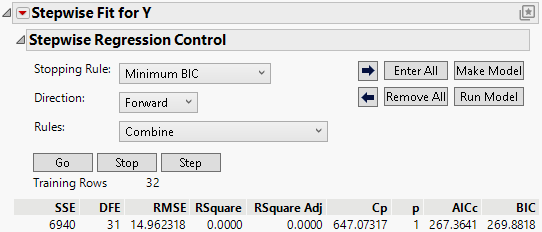
Stopping Rule
The Stopping Rule option specifies a rule that determines when the variable selection algorithm stops. For all stopping rules other than P-value Threshold, only the Forward and Backward directions are available. The only stopping rules that use validation are Max Validation RSquare and Max K-Fold RSquare.
The following stopping rule options are available:
P-value Threshold
Uses p-values (significance levels) to enter and remove effects from the model. Specify the thresholds for variable inclusion.
Prob to Enter
Specifies the maximum p-value that an effect must have to be entered into the model during a forward step.
Prob to Leave
Specifies the minimum p-value that an effect must have to be removed from the model during a backward step.
Note: If the specified Prob to Leave is less than the specified Prob to Enter, JMP uses the Prob to Enter value for both Prob to Enter and Prob to Leave.
Minimum AICc
Uses the minimum corrected Akaike Information Criterion to choose the best model. See “Likelihood, AICc, and BIC”.
Minimum BIC
Uses the minimum Bayesian Information Criterion to choose the best model. See “Likelihood, AICc, and BIC”.
 Max Validation RSquare
(Available only when validation is used.) Uses the maximum R-square from the validation set to choose the best model. This rule attempts to find a model that maximizes the RSquare statistic for the validation set.
Max K-Fold RSquare
(Available only when k-fold cross validation is used.) Uses the maximum R-square from k-fold cross validation to choose the best model. When you select this option, you must specify the number of folds.
Direction
The Direction option specifies the direction that is used by the variable selection algorithm to enter and remove effects from the model. Select one of the following options:
Forward
Enters the term with the smallest p-value. If the P-value Threshold stopping rule is selected, that term must be significant at the level that is specified by the Prob to Enter option. See Example of Forward Selection.
Backward
Removes the term with the largest p-value. If the P-value Threshold stopping rule is selected, that term must not be significant at the level that is specified by the Prob to Leave option. See Example of Backward Selection.
Note: When Backward is selected as the Direction, you must click Enter All before clicking Go or Step.
Mixed
(Available only when the P-value Stopping Rule is selected.) Alternates the forward and backward steps. It includes the most significant term that satisfies Prob to Enter and removes the least significant term satisfying Prob to Leave.
Note: If the specified Prob to Leave is less than the specified Prob to Enter, JMP uses the Prob to Enter value for both Prob to Enter and Prob to Leave.
Rules
The Rules option appears when your model contains related terms, such as interaction terms. When you have a nominal or ordinal variable, related terms are constructed and appear in the Current Estimates table.
Use the Rules option to specify the rules that are applied when there is a hierarchy of terms in the model. A hierarchy can occur in the following ways:
• A hierarchy results when a variable is a component of another variable. For example, if your model contains variables A, B, and A*B, then A and B are precedent terms to A*B in the hierarchy.
• A hierarchy also results when you include nominal or ordinal variables. A term that is above another term in the tree structure is a precedent term. See Construction of Hierarchical Terms.
Select one of the following options:
Combine
Calculates p-values for two separate tests when considering entry for a term that has precedents. The first p-value, p1, is calculated by grouping the term with its precedent terms and testing the group’s significance probability for entry as a joint F test. The second p-value, p2, is the result of testing the term’s significance probability for entry after the precedent terms have already entered into the model. The final significance probability for entry for the term that has precedents is max(p1, p2). In either case, if a term with precedents is added to the model, the precedent terms are also added.
For example, when considering an interaction, A*B, by heredity rules, if A*B is in the model, then A and B must also be in the model. The first test above is for the group A, B, and A*B. The second test above is for A*B with A and B both included in the model prior to the test.
Tip: The Combine rule avoids including nonsignificant interaction terms, whose precedent terms can have particularly strong effects. In this scenario, the strong main effects might make the group’s significance probability for entry, p1, very small. However, the second test finds that the interaction by itself is not significant. As a result, p2 is large and is used as the final significance probability for entry.
Caution: The degrees of freedom for a term that has precedents depends on which of the two significance probabilities for entry is larger. The test used for the final significance probability for entry determines the degrees of freedom, nDF, in the Current Estimates table. Therefore, if p1 is used, nDF equals the number of terms in the group for the joint test, and if p2 is used, nDF equals 1.
The Combine option is the default rule. See Models with Crossed, Interaction, or Polynomial Terms.
Restrict
Restricts the terms that have precedents so that they cannot be entered until their precedents are entered. See Models with Nominal and Ordinal Effects and Example of the Restrict Rule for Hierarchical Terms.
No Rules
Runs the selection routine with complete freedom to choose terms, regardless of whether the routine breaks a hierarchy or not.
Whole Effects
Enters only whole effects, when terms that involve that effect are significant. This rule applies only when categorical variables with more than two levels are entered as possible model effects.
Whole Effects Respecting Heredity
Enters whole effects while considering effect heredity. In forward steps, if an interaction effect is the next term to enter the model, the contained main effects are entered into the model as well. In backward steps, if a main effect is the next term to leave the model, all interaction effects that contain that main effect leave the model as well.
Buttons
The Stepwise Control Panel contains the following buttons:
Go
Automates the selection process to completion. Among the fitted models, the model that is considered the best based on the selected Stopping Rule is listed last. Except for the P-value Threshold stopping rule, the model that is selected as Best is one that overlooks local dips in the behavior of the stopping rule statistic. The button to the right of the Best model selects it for the Make Model and Run Model options, but you are free to change this selection.
– For P-value Threshold, the best model is based on the Prob to Enter and Prob to Leave criteria. See P-value Threshold.
– For Min AICc and Min BIC, the automatic fits continue until a Best model is found. The Best model is one with a minimum AICc or BIC that can be followed by as many as ten models with larger values of AICc or BIC, respectively. This model is designated by the terms Best in the Parameter column and Specific in the Action column.
– For Max Validation RSquare (JMP Pro only) and Max K-Fold RSquare, the automatic fits continue until a Best model is found. The Best model is one with an RSquare Validation or RSquare K-Fold value that can be followed by as many as ten models with smaller values of RSquare Validation or RSquare K-Fold, respectively. This model is designated by the terms Best in the Parameter column and Specific in the Action column.
Tip: In scripts, the Finish option is recommended instead of the Go option.
Stop
Stops the selection process that is started by the Go button.
Step
Increments the selection process one step at a time.
Arrow buttons
Step forward ( ) or backward (
 ) one step in the selection process.
Enter All
Enters all unlocked terms into the model.
Remove All
Removes all unlocked terms from the model.
Make Model
Opens a Fit Model launch window for the model that is specified in the Current Estimates table. In cases where there are nominal or ordinal terms, the Make Model option creates temporary transform columns that contain terms that are needed for the model.
Run Model
Opens a Standard Least Squares report for the model that is specified in the Current Estimates table. In cases where there are nominal or ordinal terms, the Run Model option creates temporary transform columns that contain terms that are needed for the model. Additional models are appended to the open report.
Statistics
The following statistics appear below the Stepwise Regression Control panel:
SSE
(Shown only for continuous responses.) Sum of squared errors for the current model.
DFE
(Available only for continuous responses.) Error degrees of freedom for the current model.
RMSE
(Available only for continuous responses.) Root mean square error (residual) for the current model.
-LogLikelihood
(Available only for categorical responses.) The negative of the natural logarithm of the likelihood function for the current model. See “Likelihood, AICc, and BIC”.
RSquare
Proportion of the variation in the response that can be attributed to terms in the model rather than to random error.
RSquare Adj
(Available only for continuous responses.) Adjusts R2 to make it more comparable over models with different numbers of parameters by using the degrees of freedom in its computation. The adjusted R2 is useful in the stepwise procedure because you are looking at many different models and want to adjust for the number of terms in the model.
Cp
(Available only for continuous responses.) Mallow’s Cp criterion for selecting a model. This value is an alternative measure of total squared error and can be defined as follows:
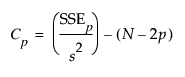
where s2 is the MSE for the full model and SSEp is the error sum of squares for a model with p variables, including the intercept. Note that p is the number of x-variables+1. If Cp is graphed with p, Mallows (1973) recommends choosing the model where Cp first approaches p.
p
Number of parameters in the model, including the intercept.
AICc
Corrected Akaike’s Information Criterion. See “Likelihood, AICc, and BIC”.
BIC
Bayesian Information Criterion. See “Likelihood, AICc, and BIC”.
RSquare Validation
(Available only when Validation is used.) R-square of the model fit to the validation data. The value is also shown in the Step History report.
RASE Validation
(Available only when Validation is used for a continuous response.) Root average square error (residual) for the current model fit to the validation set.
RSquare Test
(Available only when Validation with a test set is used.) R-square of the model fit to the test data.
RASE Test
(Available only when Validation with a test set is used for a continuous response.) Root average square error (residual) for the current model fit to the test set.
Avg Log Error Validation
(Available only when Validation is used for a categorical response.) A measure of error of the model from the training data that is applied to the validation data. Smaller values are preferred. See Validation and Test Set Statistic Definitions.
Avg Log Error Test
(Available only when Validation with a test set is used for a categorical response) A measure of error of the model from the training data that is applied to the test data. Smaller values are preferred. See Validation and Test Set Statistic Definitions.